On this page
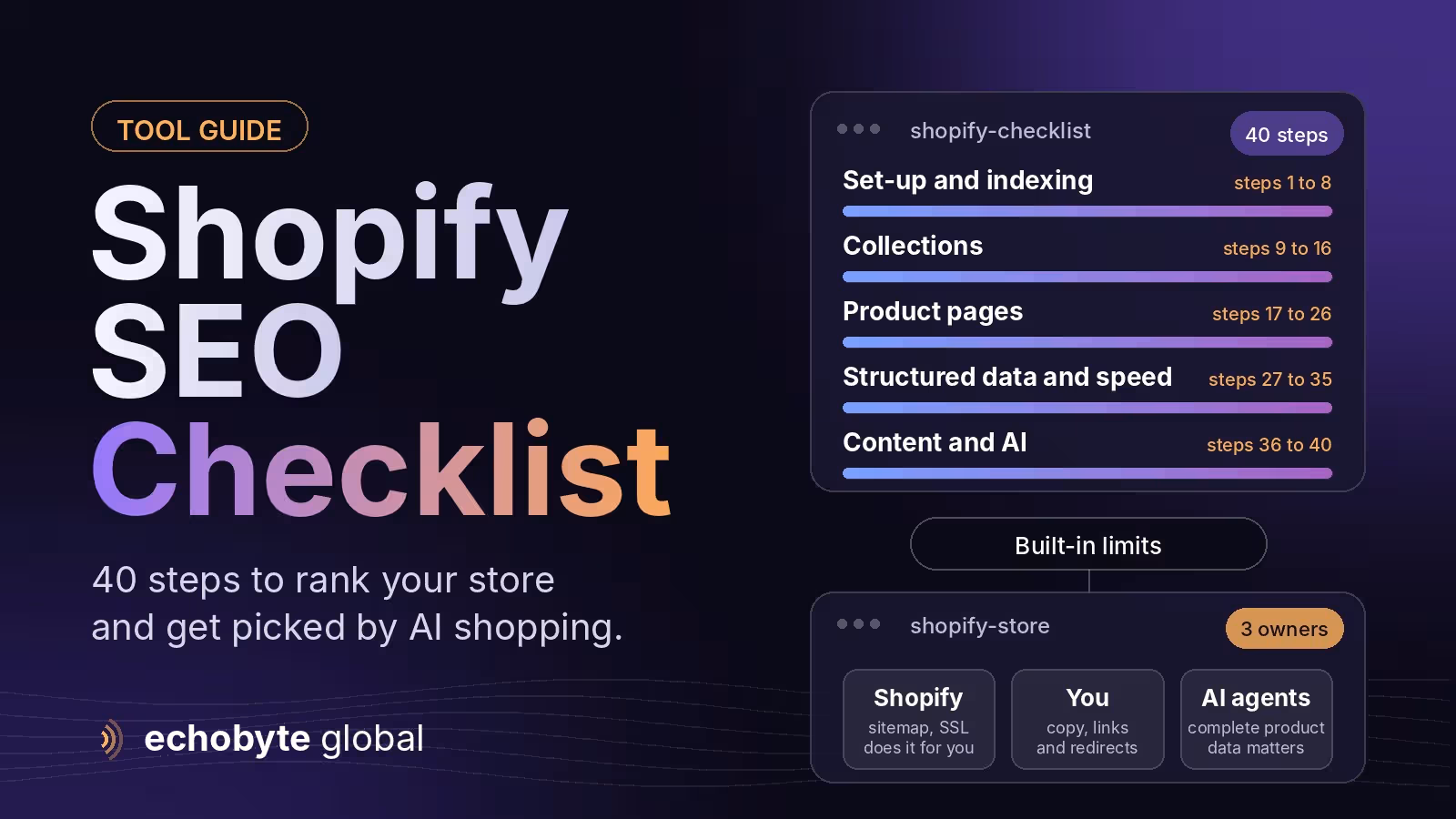
Shopify SEO Checklist is the work of making a Shopify store easy for search engines to crawl and understand, and worth ranking for shoppers: unique collection and product content, clean internal links, correct structured data and fast pages. Shopify automates a lot. It generates a sitemap at /sitemap.xml, adds canonical tags, serves a default robots.txt and includes SSL. What it doesn’t do is write your content, fix duplicate URL paths created by collections, or stop apps from slowing your pages. This checklist has 40 steps in seven groups, plus a table of Shopify’s built-in limits and how to work around them.
We also cover how AI shopping agents change the picture. Information was checked in November 2026. Shopify and its themes change often, so confirm settings in your own admin before you act.
Key takeaways
- Shopify handles the sitemap, canonical tags, SSL and a default robots.txt. Content, internal links, schema quality and speed are still your job.
- The same product can be reached through several URLs. Make sure canonical tags and your internal links agree on /products/handle.
- Collections are your category pages. Give each a unique title, description and purpose, and don’t publish every tag as a collection.
- Apps add code. One 2026 analysis estimates SEO-branded apps often add 40 to 120 KB of JavaScript, so audit them regularly.
- Clean product data helps in classic search and with AI shopping agents.
What does Shopify handle automatically, and what is left to you?
| Area | What Shopify does | What you still need to do |
|---|---|---|
| XML sitemap | Generates /sitemap.xml and updates it as products change | Submit it in Google Search Console and check URLs are indexable |
| Canonical tags | Adds them automatically | Check they point to /products/handle and that links match |
| robots.txt | Serves a default file, editable through robots.txt.liquid | Edit only to fix a diagnosed crawl problem |
| SSL and mobile themes | Included | Nothing |
| Titles and meta descriptions | Editable fields on every page | Write unique ones for key pages |
| Structured data | Many themes add basic Product data | Verify it and fill gaps |
| Redirects | A URL redirect tool in the admin | Add redirects when you delete or rename pages |
| Hosting and CDN | Included | Control apps, theme code and images |
The 40-step Shopify SEO checklist
Set-up and indexing (steps 1 to 8)
- Make sure the store is public. Remove any password page or noindex tag left over from development.
- Connect Google Search Console and submit /sitemap.xml. Check the Pages report for indexing problems.
- Choose one primary domain. Redirect all other versions to it in the domain settings.
- Check canonical tags on products. They should point to /products/handle, not the collection-based path.
- Make internal links match. Make collection and menu links point to the plain product URL so the links agree with the canonical.
- Review robots.txt. Shopify’s default blocks low-value areas such as cart and checkout. Edit robots.txt.liquid only for a confirmed problem, and recheck it after installing or removing SEO apps.
- Add 301 redirects. Redirect deleted or renamed products and collections to the closest relevant page using the URL redirects tool.
- Audit your sitemap URLs. Every URL in it should return 200, be indexable and be the canonical version.
Collections (steps 9 to 16)
- Give each collection a unique title, meta description and H1.
- Write a useful description above the product grid. Explain what the collection includes and how to choose. Don’t paste keyword lists.
- Fix empty and thin collections. Remove, merge or noindex them, and don’t publish every tag as a collection.
- Keep filtered URLs out of the index. Shopify’s default robots.txt blocks tag combinations joined with a plus sign. Check how your filters and parameters behave.
- Link parent and child collections. Add breadcrumbs so both people and crawlers see the hierarchy.
- Check pagination. Make sure paginated pages don’t create near-duplicate titles and that products are reachable by links.
- Review /collections/all. If it duplicates your main shop collection, consider redirecting it.
- Use real search data. Check Search Console queries and name collections the way shoppers search.
Product pages (steps 17 to 26)
- Write unique title tags. Aim for roughly 50 to 60 characters, leading with the product and its key attribute.
- Write meta descriptions that earn the click. Roughly 150 to 160 characters is a common target.
- Use one H1. The product title is usually right, with logical subheadings below it.
- Replace manufacturer copy. Write unique descriptions covering use cases, materials, sizing and compatibility.
- Add descriptive image names and alt text. Describe what the image shows.
- Handle variants. Variant URLs with a variant parameter should resolve to the main product page as the canonical.
- Show real reviews and answer common questions. Add a short FAQ to important products.
- Show shipping, returns and warranty details. Shoppers and search engines both look for them.
- Handle out-of-stock products sensibly. Keep the page live with alternatives, and redirect to the closest match only if the product is permanently discontinued.
- Link to related products, collections and guides.
Structured data and feeds (steps 27 to 31)
- Test Product schema. Use Google’s Rich Results Test to check name, image, price, currency, availability, brand and SKU.
- Add BreadcrumbList and Organization data if your theme lacks them.
- Use review markup only for real, visible reviews.
- Connect Google Merchant Center. Fix feed errors and add product identifiers such as GTINs where they exist.
- Store attributes in metafields. Show them on the page and keep them consistent with your data.
Speed and apps (steps 32 to 35)
- Test key pages on mobile. Run PageSpeed Insights on the home page, a collection and a product. Aim for a good Largest Contentful Paint of 2.5 seconds or less.
- Audit your apps. Remove those you don’t use, and check for leftover code after uninstalling.
- Use a lightweight, maintained theme. Test it with your real products before committing.
- Size and compress images. Don’t lazy-load the main product image, and limit custom fonts and sliders.
Content and authority (steps 36 to 39)
- Publish buying guides and comparisons. Answer the questions shoppers ask before they buy.
- Link guides to collections and products. Use descriptive anchor text.
- Earn links and mentions. Suppliers, partners, press and creators are the usual sources.
- Improve titles on pages with impressions but few clicks. Search Console shows which pages those are.
International and AI (step 40)
- Prepare for multiple markets and AI agents. Shopify Markets can add hreflang for multi-country stores, so check yours for duplicates. For AI shopping agents, keep product data complete and consistent, and read our Universal Commerce Protocol guide.
What are Shopify’s built-in SEO limits, and how do you work around them?
| Limit | Why it matters | Workaround |
|---|---|---|
| Fixed URL prefixes such as /products/ and /collections/ | You can edit the handle but not the prefix | Keep handles short and descriptive, and redirect when you change them |
| Duplicate product paths through collections | The same product can be reached in several ways | Use canonicals and plain product links in the theme |
| Filter and tag URLs | They can create many near-duplicates | Use the default robots rules and check parameter URLs |
| Basic default structured data | Some themes only cover the minimum | Verify and extend through theme code or one trusted app |
| App weight | Extra scripts slow pages | Audit apps and measure each one’s speed cost |
| Robots control | You can edit robots.txt.liquid, but mistakes can block revenue pages | Change it only with a clear reason and review |
Do you need a Shopify SEO app?
Usually one well-chosen tool is enough, and many stores need none. Apps can help with bulk meta tags, redirects and extra schema, but each adds code and can overlap with your theme. Install one, measure the speed change, and remove anything you don’t use.
How do AI search and shopping agents change Shopify SEO?
Shoppers now ask AI assistants for product recommendations, and some assistants can complete purchases. The basics help both: complete product titles, descriptions, images, prices and availability. Our Universal Commerce Protocol guide explains the standards behind agent checkout, our guide to llms.txt for online stores covers what that file does and doesn’t do, and our AI search optimization guide covers being cited in AI answers.
How long does Shopify SEO take?
Technical fixes can be picked up within weeks, while new content and authority usually take months to show in rankings. Results depend on competition, your catalog and how often you publish, so nobody can honestly guarantee a position. Track organic revenue, not only traffic.
How can Echobyte help?
Our web development service builds fast Next.js sites and Shopify storefronts with metadata, sitemaps and structured data from day one. Our SEO service starts from $600 a month with a technical audit and no ranking guarantee. See our ecommerce website cost guide and our website audit checklist for related checks.
Shopify SEO checklist FAQ
Is Shopify good for SEO?
Yes, with caveats. It handles much of the technical groundwork, but you need to manage duplicate URLs, content quality, structured data and app weight.
Can I edit robots.txt on Shopify?
Yes. Shopify serves a default file and lets you customize it through a robots.txt.liquid template. Edit it only to fix a diagnosed crawling problem.
How do I fix duplicate product URLs on Shopify?
Make sure canonical tags point to /products/handle and that your theme links to that plain URL from collections and menus. Then check Search Console to see which URLs are indexed.
Can I change Shopify’s URL structure?
You can change the handle, which is the last part of the URL, but not the /products/ or /collections/ prefixes. Redirect any URL you change.
How do I submit my Shopify sitemap to Google?
Verify your store in Google Search Console and submit your domain’s /sitemap.xml in the Sitemaps report. Shopify updates it automatically.
How long does Shopify SEO take to work?
Technical fixes may show effects within weeks. Content and authority take months, and results can’t be guaranteed.
Want an expert look at your store? We review your structure, product data and speed, and every project starts with a free discovery call.
Sources
- Editing robots.txt, Shopify Help Center
- Shopify SEO checklist, Scandiweb
- Technical SEO fixes for Shopify stores, Rank AI
- Shopify SEO issues: common problems and how to fix them, Outer Box Design
- Shopify’s biggest SEO limitations and how to work around each one, 1 Digital Agency
- Shopify SEO: Complete Guide 2026, Visionary Marketing